

Photo Editing with Free Open Source Software
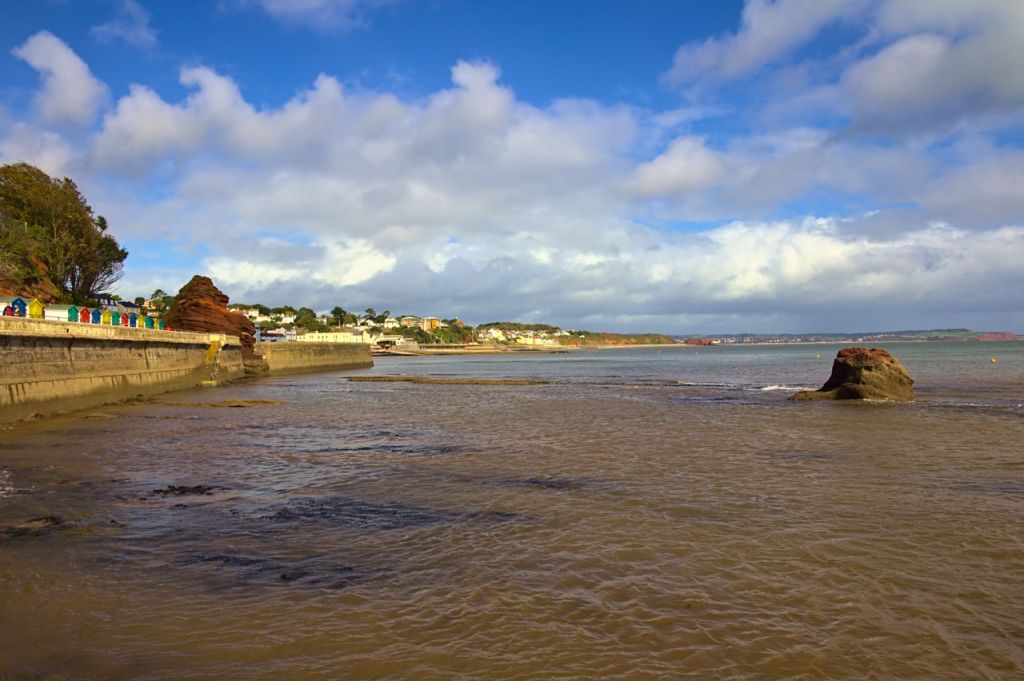
It’s FOSS – that’s Free and Open Source Software. Great for editing your photos, and definitely not expensive!
Folow discussion threads on photography, or groups on Facebook and you will see the queries cropping up. Photographers looking for good editing software without committing to the costs of high end software, like Lightroom and Photoshop. They are good products, but offer a whole lot more than the average hobby photographer will ever use.
Back in 2014 I wrote a post on Linux and Photography, which emphasises the advantages of using Linux. It misses the point that all of the software which I use to manage and edit my photos is FOSS and runs on Windows, Mac and Linux.
The software is generally free to use, and quite a number of people have written comparisons with other products.
My workflow generally starts with the Linux specific Pix application. Pix very effectively offloads images from the SD card and organises them by my rules on the hard drive. It is, in itself an effective organiser, but is Linux specific.
XnView MP
Once the images are on the drive, the simple and intuitive organisation XnView forms the centre point of how I manage them. Apart from the basic organisation of the images, XnView provides useful editing tools, so it is possible to edit a raw image, save it as a jpeg and upload it directly.
XnView also has a very useful, two level flagging system. This allows you go through a directory of images, marking them either for quality, or future action, or both, with 5 values for each. Then select by value and carry out whatever action you wish.
So my typical first edit will be to go through the images quickly and, using the keyboard, flag the images with a 1 star rating. Set a filter to select only the 1 star, then flag the best with 2 stars. Until I have flagged the best of that set.
I prefer to copy all of my “working” images to a separate folder, achieved by simply using the “Copy to” tool.
Of major importance to me is the abilty to upsize images, with resampling, for upload to Redbubble and similar sites, where products need a large image.XnView MP does this well. Certainly none of my “large image” product sales from Redbubble have been returned.
An important part of that is the ability to store actions. So I have stored actions which allow me to quickly mass resize images for blog posting, and for resizing for various Redbubble products. That is so useful!
If the image was a good one in camera it may just need a few tweaks of contrast, saturation, and perhaps a levelling of the horizon and a bit of cropping. XnView is perfect for that.
Note that XnView also produces some mobile apps. I use XnResize alongside Snapseed on Android and Chromebook.
If those simple edits aren’t enough, then the next step will be a raw edit, in Darktable.
Darktable

Nobody says it better than the developers themselves: “darktable is an open source photography workflow application and raw developer”. In fact it is also a full on editor for most image formats.
It is powerful, with editing options from the most simple to some high complexity. Add a virtual light table and it is one very powerful piece of software.
Often, in my workflow, Darktable editing results in the final product. I will save that to an appropriate folder in jpeg (uncompressed) form, for final name editing in XnView.
Sometimes I may want to do some cleaning up, so I will export the image from Darktable in either tiff format, or the native .xcf format used by the venerable old package, Gimp.
Apart from the very irritating ad popup, here’s an interesting article comparing Darktable and Lightroom.
Gimp

Gimp is full fledged image editor, offering layers and many of the tools found in products like Photoshop.
In my workflow Gimp’s main role is in cleaning up images. Removing people, or unwanted objects. I am currently working with Gimp to develop a more artistic approach.
Again, apart from the irritating popup, heres a comparison between Gimp and Photoshop.
Other Considerations
It is worth giving some thought to other costs of running your choice of software.
I have used the above applications on Windows 7 and 10, basic 4GB systems. They work.
Darktable and Gimp do run under Crostini Linux on my VERY low spec Chromebook. Not recommended, as they are slow, but they have allowed me to process the odd image while out and about.
Keeping up with the latest software subscriptions will need you to keep your Windows and Mac systems up to date.
My own system is a laptop which was “high end” at release some 8 years ago, and will not run Windows 10 very well. It has been loaded with Linux Mint. It cost me very little as it was out of date.
Summing it Up
Unless you are making a good bit of income, or making your living from photography, you probably will never use all of the tools which you are paying for in the expensive image editing and processing software.
Why go to that expense when there are such good products available for free?

My Photos
See more of my photography in these galleries. Feel free to browse and (maybe?) buy a print.
Redbubble for over 60 products printed on merchandise including T-shirts, prints, throw pillows and more.
Photo4Me for Canvas wall art and other prints. .
Pixels.com (Fine Art America) for prints and printed merchandise.
Best Work from Home Office Setup

You are working from home. Perhaps just in lockdown, maybe looking to the "new normal" after lockdown, or maybe it’s just a side gig. Whether you have a home office, or just work from the dining room table, is your technical home office setup causing you pain?
It’s all fine having a comfortable workspace, but the way you set up your technology can make it uncomfortable.
My blog and other activities keep me in my home office in personal time. In addition, I do work from home often, especially at present, in lockdown. So I spend hours sitting in front of screens and therefore need to be comfortable.
That’s my desk in the picture. Ignore the cables and clutter – there are three systems on that desk doing much more than just my work, and mostly experimentation!
So here’s how to do it.
[adinserter block=”1″]
Layout Basics – Just Two Things
Ideally your screen needs to be about 12 inches from your eyes, with the top of the screen roughly at your eye level when sitting in a normal working position. Think about that!
A laptop on a desk is neither comfortable nor good for your neck and eyes if you are working on it for any length of time. You are constantly looking down.
In addition your forearms and wrists need support from the desk and chair arms when using keyboard and mouse.
And those two factors really decide the rest of your computer setup.
From there, you can extend that with an additional screen and a few other tricks.
The key components on my desktop as pictured are:
- 15.6 inch work laptop on its stand;
- 24 inch monitor;
- Bluetooth keyboard;
- Bluetooth mouse.
The laptop may change, depending on what I am doing – it may be a work laptop, my Chromebook, or my Linux laptop. The setup works for them all.
Laptop, Keyboard and Mouse


Putting the laptop on a stand creates a small problem. The keyboard and touchpad are now pretty useless.


So there you have the basic setup. It’s reasonably portable, puts the screen at a comfortable level, and allows you to move the keyboard and mouse to the most comfortable position relative to the screen.
The Big Screen


So – Go and Work at Home in Comfort
Yo don’t need to be forced to work in discomfort at home because your technology is not set up properly. Hopefully these tips will help.
How does your own home office setup work?
How to Use Google Photos Simply When you Travel
 [toc]
[toc]
Google Photos
Google Photos has many uses when you are travelling. But if I am on holiday I don’t want to spend my precious holiday time fussing about photo uploads and backups. Follow my simple formula and take the pain out of your holiday photo backups.
Don’t know anything about Google Photos? Here’s the Wikipedia Entry. You will need to open a Google account (free) if you don’t already have one.
So you are taking a holiday trip. And you are taking photos, probably lots of them. If you are anything like me you have a mobile phone camera, a compact camera and a DSLR (or two?). The challenge is backing up the photos, sharing them and then having them available to use as and when you want. Sometimes waiting until you get home to process and post them is just not something you want to do. But you are on holiday. You don’t want to be wasting time poring over a computer trying to get photos backed up and uploaded. I know. I have tried it.
For a long time I used Google Photos just as a backup for my mobile devices. Then I recognised another use. I could upload full size DSLR JPEGs to Google Photos, and that way make them available when I was away from home for editing and captioning for blog use. And then I bought a camera with WiFi, and my whole approach change. The whole point here is to use a bit of the downtime between the day’s holiday activities to easily and without much effort backup your best photos. I do this at least every three days, but I find that, like most photographers, I enjoy having a quick view of the day’s shooting on the day.
So How do I use Google Photos?
Simple Outline
- Set it up once, before you go;
- While you are travelling, when you have a bit of idle time, load selected photos to your phone or tablet;
- Connect to the Internet;
- When you feel motivated go online, organise your uploads into albums and share with family and friends.
Simple!
Some Basics
When you create a Google account you get Google Photos as part of the deal. If you haven’t already done so, go and have a look. It is a cloud based photo storage and sharing system. In general the photos are private, until you give someone the gallery link. Then that person can see and interact with the gallery.
One important Tip: you can have multiple Google accounts, each with 15GB of storage. It would be silly to just keep adding accounts, but you may find it useful to register more than one account. I have four, for good business and personal reasons, though I tend to keep photos to only one of those. If you are short of space in one account use a separate one to handle your photography.
But here are the really important parts:
- You can choose whether photos uploaded to Google are kept at full size, or reduced to 16 megapixels;
- If you opt for full size, the space occupied by your pictures comes off the space in Google Drive allocated to your account (currently 15GB, though you can buy more);
- If you opt to upload at “High Quality” (16 MP) size, photo storage is FREE! That means you have unlimited photo storage at 16 megapixels!
- Best of all, Google has a function to reclaim storage. If you have uploaded at full size, click on this option to reduce the photos to High Quality, 16 MP resolution. This is important point 1– remember it;
- Google Photos has an app for iOS and Android. The app gives the option to backup all photos on the device This is important point 2 – remember it;
- You control whether it updates using WiFi, data, or both;
- The app offers an option to clear from the device any photos which are already backed up to Google Photos. That means no more running out of space on your phone while you are away!
My “Formula”
To begin with simply ensure that your Google Photos settings allow upload at Full Size. This makes sure that any photos uploaded are full-sized JPEGs, providing a backup if it is needed.
Set this on the website: Menu -> Settings -> Upload size for photos and videos uploaded on the web only. Set it to Original
If you haven’t already done so, install the Google Photos app on your mobile devices, and set it to backup all photos. I carry an iPad and Android phone, and it is effective on both. Note that I don’t carry a laptop unless it is a business trip. The app instructions are in the menus, as follows:
Menu -> Settings -> Backup & Sync. Switch on the Backup & Sync option. On iOS the Menu is the gear wheel icon.
On Android check on the Backup Device Folders option. Android stores edited versions in different folders.
Set the upload size to Original in Menu -> Settings -> Backup & Sync -> Upload Size
Now, when you take a photo on your phone, it will, as soon as you connect to the Internet, upload to Google Photos.
If your camera is WiFi enabled, selectively transfer the best of the day’s photos, or those you want to use or share, to one of your mobile devices. They will also be backed up.
For my DSLRs I have an OTG (On The Go) android hub. This allows me to insert the SD card from the camera and selectively copy photos to the Android phone. Again, these will upload when you connect the device.
Once the photos are on the phone or tablet, do any edits you like. I favour Snapseed for quick edits. Originally developed by Nik software, it is now owned by Google and is very intuitive and powerful. Available in the Android Play Store and Apple store.
Create an album in Google Photos for the trip, or for each part of the trip, if you like, and put your selections there.
By doing this, you have a neatly curated full resolution backup of the pick of each day’s shooting in one or more albums.
Share the Photos
Go the extra step and share your photos. Share the link to the family back home (I use WhatsApp). That way they can see your trip as it happens.
Share your album(s) on either the app or website: Click on the Albums Icon -> Click on the Sharing icon
Either select recipients and send the link to them, or look for the Get Link option and copy the link.
Connectivity
At some time well before the internet (I heard this in 1989!), someone said “the system is the network, the network is the system”. That was never more true that it is today. The network, of course, is the internet. If you aren’t connected your fantastic phone / tablet / laptop can’t do much. The beauty of cloud services like Google Photos is that you just need to have a data connection, and your photos will sync to the cloud. All you need to do is put the photos on the device, and let the app do its thing.
Typically you will either connect via 4G or WiFi. In general I have found that 4G is easily available in many places, including the Mozambique coast, South Africa and many European locations. WiFi, as many have discovered, is another story, ranging from low-grade, overloaded hotel systems to high performance internet café systems.
Uploading photos every day on holiday will use a big chunk of your 4G data allowance, so be aware of this and keep an eye if you choose this method. If you have the capacity, this is the best way to connect. Using a WiFi connection, particularly a public one, can raise some security worries, so it’s best to limit the connection as much as possible.
My method goes like this:
- Arrange for unlimited 4G for the trip. This may cost a bit, but is worth it. If you do need to limit it, give yourself between 10 GB and 20 GB for a three week trip.
- Set the Google Photos app to sync using mobile data
- Menu -> Settings -> Backup & Sync -> Mobile Data Backup
- Leave the mobile phone connected to 4G all of the time. This is useful if you use WhatsApp and the like to communicate.
- Any photos on the mobile phone will be automatically uploaded to Google Photos. Simple!
- If the photos to upload are on the tablet, I set up a hotspot on the phone
- If all i have available to WiFi I will carefully choose where I connect, and leave the phone connected just long enough to complete the upload.
- Obviously I will connect the tablet directly to WiFi if there are photos on it.
If you have no internet connection, don’t let that stop you. Just carry on offloading photos to the mobile device. Once you reconnect, it may take a bit of time, but the photos will sync. All you need to do is connect to the internet.
The Backup Option
Google Photos is often touted as a full backup method for your photos. You certainly could do worse than keep a 16 megapixel JPEG backup, and Photos is effectively an unlimited storage at this resolution. I don’t use this for a couple of good reasons.
Put simply, a couple of hundred photos uploaded while away from home is likely to take a lot of time.
More importantly, if you are not carrying a laptop, the transfer time from SD card, always assuming your mobile device is big enough to store all of your photos, to mobile device will be huge, consuming both time and battery power. Your holiday will soon become an exercise in uploading photos.
If the worst happened, and I lost my gear, SD cards or whatever, I would rather come home with a small selection of good photos, and memories of a good time away. Up to the point of disaster at least!
The RAW backup option
RAW files are big files. I’d rather have a holiday than spend my time trying to upload them, juggling bandwidth and storage capacity. In fact I have never used the RAW capability in Google Photos, though I believe it is pretty good.
That said, if I have a mind blowing fantastic photo or two, I may drop the RAW versions into DropBox or similar.
And then What?
Here’s where this comes into its own! You get home, offload your SD cards, BACKUP! If you followed my formula, you have a neatly curated album from your trip, with all of the JPEGs at full resolution. Add to it, show it off, download any edits to add to your home system, blog them or whatever.
At some point, don’t forget to reduce the storage utilisation.
Google Photos? Wouldn’t leave home without them!
Web Hosting Migration to SiteGround
Travels of the Hairy One Moved to SiteGround
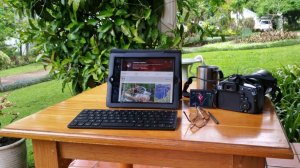
Getting away from photography, here’s something from my other, more technical, persona. Travels of the Hairy 1 is now hosted on SiteGround. And they have impressed me. Now, let’s give that a bit more context. As an IT Manager I have established and manage a 24×7 system based on Managed Services. I deal with service providers at a number of levels. Good IT service is something I deal with every day. Poor service is something I have zero tolerance for. I am NOT easily impressed!!
The migration to SiteGround impressed me!

Moving my Website – Why?
There are many pitfalls, problems and issues in migrating a website, even a basic WordPress site. Having run WordPress on a few hosts, including self-built internal servers I have had a bit of experience in on this one. A move to a new web host is not something to jump into without thought.
Last year I realised that my site’s performance was not great. In particular I noticed the following issues:
- The site was slow. Not frighteningly slow, but slow enough that it was noticeable;
- Google speed insights consistently warned about poor server performance;
- WordPress editing had become consistently frustrating. It was slow and often threw 500 – Internal server errors;
- XML-RPC errors were the norm. This especially causes problems in the mobile WordPress app, and tools such as IFTTT.
The site is not (yet?!) in the realms of needing high-end, pro, and therefore expensive, hosting. When I had a chat with my then current hosting service’s support line I was told that I was still using an old, no longer efficient, platform. The solution: write off my existing hosting package, buy a new package on a newer platform, and pay (around $100) to migrate the site. And I am not joking!
Moving my Website – Where?
A bit of research showed that my then current hosting company was not that highly rated. Time to move on!
In the past I have had other experiences of a couple of hosting companies. Reading reviews and research highlighted two. Both are well known. One comes highly recommended and is host to a site which I manage.
SiteGround looked interesting. Good reviews. Many claims about their service levels. All in all an interesting proposition. I like “New”, so SiteGround moved to the top of the list. Four key issues stood out:
- Low start-up cost, saving me a good bit for this year’s annual renewal;
- 30 day money back option. If it didn’t look good at the start I could back out;
- Free migration of my existing site, without being forced to migrate the domain. This is seamless and can be rolled back;
- A broad range of services, well able to meet any of my future requirements.
Moving my Website – The Process
Preparation
There are a number of articles on the web covering compatibility of certain WordPress themes and hosts, as well as the compatibility of WordPress with various hosts. I ran a few checks:
- On WordPress.org the hosting page was very useful. The forums showed me nothing which raised any concerns;
- A check with my theme provider’s support line (that’s Siteorigin) suggested some problems which could arise and recommended a tool to do the migration. I checked it out but decided that it could cause more problems than I wanted to deal with;
- An online chat with SiteGround’s support revealed a few facts:
- Starting with the basic hosting plan, I could upgrade at any time and have my existing subscription taken into account. So my investment in their services is protected;
- The free migration offered by SiteGround is seamless, so there is no downtime as the site migrates;
- Support for both SiteGround and WordPress would be available at all times.
At that point there was no reason not to move.
Starting the process

When I started the migration process I was cautious. I started a conversation with the helpdesk one Friday lunchtime with a view to starting the site migration. That meant filling in the forms online and paying for the new hosting. The support person was very polite and helpful, and very patient as I did that. There no silly complexities and issues in the forms, so that was dead easy.
Once the formalities were done, I was told that I would be notified, within 24 hours, when the move was complete. On the Saturday morning the completion message was in the SiteGround notification area. It contained very clear instructions on how to test the new site (using the PC hosts file), and then how to bring the site live by changing DNS. So, at this time, the old site was still the live one. There were also links to very simple instructions and tutorials. I did have a look at those, but I already knew how to do all of these tasks, so didn’t worry too much.
Go-Live
I opened the new site. Shock and Horror! Many graphics were missing! there were problems.
On opening the WordPress dashboard there was a very clear message from Jetpack – the Jetpack security had identified the duplicate site, and locked out, awaiting confirmation of the move. Who knew that was there? Once the move was confirmed on Jetpack, everything worked.
After checking the site, and making some changes to prove the move, changing DNS on the domain host was simple. In a few hours I was seeing the transferred site up and running. Job Done!
It’s important to note that the use of the PC hosts file to test make sure that the original site is up and running. So the transfer is actually seemless. It does mean that you can’t do this in the same way on a table, however there were instructions for alternative methods, which I ignored.
Only one problem exists, and I am reasonably certain that lies in a plug-in update and the switch to PHP 7.0, rather than the free transfer.. A few of the NextGen photo slide shows had invalid settings. That was easily fixed.
SiteGround Extras
SiteGround offers both an affiliate scheme and a referral scheme. Reading the T&C’s it’s not worth joining the affiliate scheme unless you are going to put some effort into marketing the SiteGround products. The referral scheme allows you to refer customers via a simple link. Referrals are repaid by credit against your account. Refer enough people and your hosting will be free!
Summing It Up
The low start-up cost, along with a bit of research gave me the confidence to make the change early. If it had gone badly, or any problems develop in the next week or two, a simple DNS change will restore the original site. The result so far leaves me confident that I will not need to do that.
The problems I outlined above have gone away.
Put simply, I would recommend SiteGround to host your site, based on my experience.
Disclaimer
This is an outline of my experience in migrating to SiteGround, which has impressed me.
I am a SiteGround affiliate. Clicking on the SiteGround links and banners will help me support The Travels of the hairy One.
More Lightweight Camera Thoughts
[two_third]
With a lightweight camera on the wishlist (see Travel Photography – My Travel Camera) and road trip to London (to see the Tower of London Poppies) and the Isle of Wight (for a first time visit) (more…)
Travel Photography – My Travel Camera
[two_third]
Recently I have seen the travel photography work of an older photographer. These are superb 18 x 12 prints, well composed and technically excellent. All of them are printed straight out of (more…)
Upgrade Your Camera
Which raises the question of Why upgrade your camera?
It is easy to look at the latest camera releases and say “I want it!”, but let’s face it, this photography hobby is expensive. If you have the (more…)
Linux and Photos – Hi Performance Low Cost
Linux and Your Photos
Fed up with the need to frequently upgrade your Windows PC or laptop? Stretching the budget to move to an Apple system? Worried about the cost of Photoshop / Lightroom, etc? Give some though to a Linux system.
For a while now I have been acquiring the odd older laptop and installing Linux. It is not hard, and often a damaged hard drive, which has trashed Windows, but is not totally destroyed, is recovered by the installation. Now my computer has to achieve a few things:
- My photography – storage, management and processing of photos;
- Music – storage and CD writing;
- Internet access – pretty standard;
- Work – documents and access to VPN systems.
In other words, pretty much what most people want their home computer to do. With possibly a bit more emphasis on the photographic processing.
In its earlier days, implementing Linux required a bit of “techie” understanding of your computer hardware. Nowadays you have the choice of taking a slightly more complex installation route, which does require some basic understanding of your system, or taking the basic “plug in and go” approach. Many computer users would be easily able to install it on their PC, especially if it is an older machine.
Advantages of using Linux
- It extends the life of the PC. Because it performs more efficiently than Windows older, smaller PCs will often perform well. I recently loaded Mint Linux 16 (latest version) on to a 2 MB ex Windows Vista system. It performs like new!
- It is FREE. Simply choose the Linux version you want to use, download and install;
- Current flavours of Linux support highly effective packages equivalent to similar Windows packages. Browsers, Office, Photography, Music – they’re all there.
- Most application packages are FREE!
Disadvantages of Linux
- Linux does not, as a rule, run Windows software. To date I have not found a Windows package which does not have an equivalent, highly effective, Linux / Open Source alternative.
- Installation of “dual boot” (Windows and Linux co-existing on the same machine) often requires a bit of “techie” knowledge. I don’t run any machines like this, so installations are easy, taking about an hour.
- Apple does not support the Linux environment, so if you are an Apple user. There are ways, but they are tricky. So if you are into iTunes, you will need Apple or Windows at some point.
- Some TV services, such as Netflix, are not supported. The “front end” of these services is managed via Microsoft DRM (Digital Rights Management) which has not been made available to Linux developers. That said, I have little problem in the UK running the Freeview catch-up services and live streaming.
From a budget photography perspective Linux offers a solid alternative to the Windows / Apple / Adobe option. Well worth thinking about if you, like me, would prefer to spend your hard earned dollars on lenses than on computers.
My current preference of Linux flavours is Mint Linux – simple, easy to use interface with a good software manager.
What’s that got to do with butterflies? Absolutely nothing. The Linux logo is normally Tux, the Linux penguin below, but I didn’t have a picture of my own, so I used the butterfly, which, by the way, was processed in Luminance HDR and GIMP on a Mint Linux system.
Some Relevant Reading
Amazon offers a broad selection of books about the linux operating system

 Hairy 1 Travels